



Dynamic Number Insertion (DNI) is one of the most powerful features inside CallRail. It allows you to show different phone numbers to visitors depending on how they found your website. Whether they came from Google Ads, social media, email campaigns, or even direct traffic, CallRail will assign a unique number to each source. This provides you with full visibility into which marketing channels are driving genuine phone call conversions.
The best part? Setting up DNI is a fast and straightforward process. Most businesses can complete the setup in under 30 minutes. Once it’s live, you’ll be able to connect phone calls to campaigns, keywords, landing pages, and even specific ads.
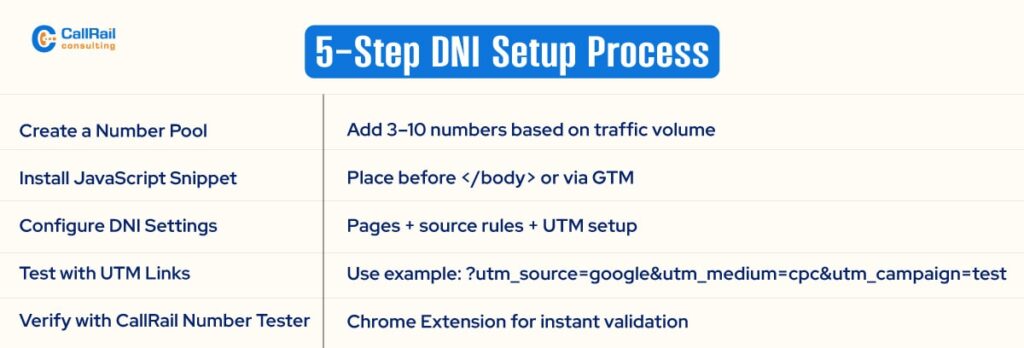
Step 1: Create a Tracking Number Pool
Start by creating a tracking number pool inside your CallRail account. A number pool is a set of phone numbers that can be dynamically assigned to website visitors based on their source of origin. The more visitors you expect simultaneously, the larger your pool should be. For small businesses, three to five numbers are often enough. For high-traffic sites, you may need ten or more.
To do this, log in to your CallRail dashboard. Click Numbers, then select Add Tracking Number. Choose the Dynamic Number Insertion option and follow the prompts to set up your pool.

Step 2: Install the CallRail JavaScript Snippet
Next, you need to install the CallRail tracking script on your website. This script powers the dynamic swapping of numbers based on user sessions and UTM parameters.
Go to your CallRail dashboard and locate your account’s JavaScript snippet. Copy the script and place it right before the closing </body> tag on every page of your website. If you’re using a tag manager like GTM, you can create a custom HTML tag and fire it across all pages.
This script must be present and firing for DNI to work properly. Without it, the number won’t change when users arrive from different channels.
Step 3: Define Your DNI Settings
After installing the script, it’s time to configure where and when your tracking numbers appear. In CallRail, go to your number pool settings and define:
- Which pages should display dynamic numbers
- Which sources should trigger swaps (Google Ads, organic search, direct traffic, social media, email campaigns, etc)
You can get specific here. For example, you might choose to show dynamic numbers only on landing pages or service pages, while keeping your homepage static.
You can also create custom tracking rules using UTM parameters. This allows you to swap numbers only when a visitor comes from a specific campaign or source.
Step 4: Test the Setup Using UTM Parameters

Once your pool and script are in place, it’s time to test. Visit your website with different UTM parameters, like:
?utm_source=google&utm_medium=cpc&utm_campaign=plumbing_services
If DNI is working correctly, you’ll see the phone number on your site change depending on the source and campaign parameters in the URL. Try visiting your site from an incognito window with several variations to simulate real-world traffic.
This step is essential for ensuring that attribution is functioning as intended.
Step 5: Use the CallRail Number Tester Tool
To double-check that everything is working properly, CallRail offers a free browser extension called the CallRail Number Tester. Once installed, it displays the number a user sees based on their source and session details.
This tool is ideal for troubleshooting number swaps, verifying configuration settings, and ensuring that users view the correct tracking number. If the number isn’t switching, the extension will show you why.
Why Dynamic Number Insertion Matters
DNI is the backbone of accurate call attribution. Without it, you can’t reliably connect phone calls to specific campaigns or traffic sources. With it, you gain access to granular call tracking, improve conversion attribution, and empower smarter budget decisions.
Imagine knowing not just that a user called, but that they came from a specific Google Ads keyword, landed on your product page, and converted within two minutes of being on site. That’s what DNI delivers. Set it up once, and you’ll gain valuable insights every day without lifting a finger.